Filtering your data
Filters allow you to narrow down your data to only the specific information you are interested in.
Each Data View (and the Lab Reports menu) has a Projects & Sites filter which will pre-filter your data.
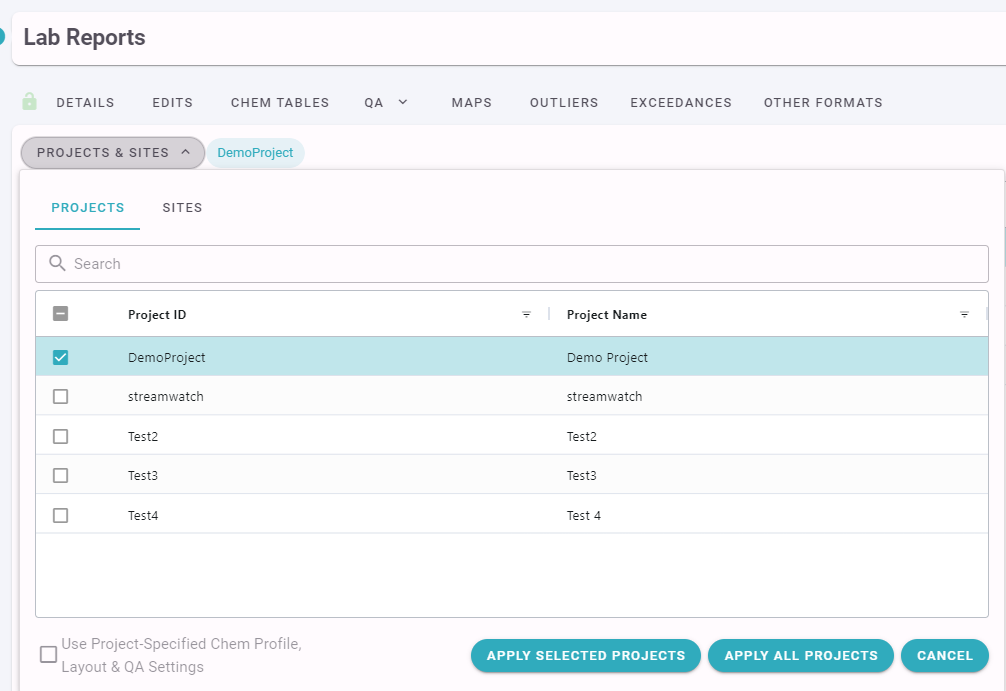
By ticking the Use Project-Specified Chem Profile, Layout & QA Settings option, the Chem Profile / Layout Settings for the selected Project will be applied. Otherwise, your current settings will be retained.
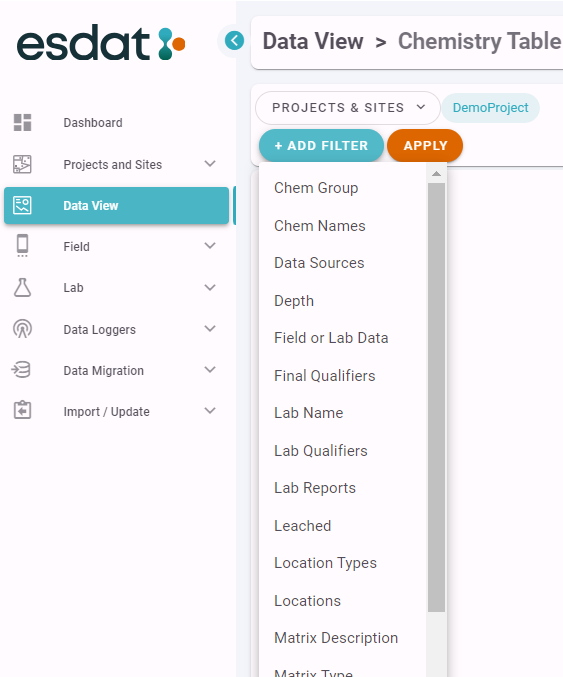
Further filters that will adopt to the data being viewed can be chosen by clicking the Add Filter drop-down, which will list the available filters.
In order to be able to effectively filter it is recommended that at a minimum you populate the following information:
For each Chemistry Sample (where relevant)
- The Site and Location (and Well if applicable)
For each Location:
- Coordinates
- Location Type
- Purpose
- Monitoring Zone
For each Well
- Monitoring Unit (ie Aquifer)
Beyond the above basics, additional fields can be populated to help filter and arrange your data, and will depend on your site and requirements.
Location Groups
An advanced method of grouping Locations for filtering purposes is available via "Location Groups". Populating Location Groups is via the Data Migration Manager (Import, and View and Edit).
Location Groups enables users to specify a list of Locations with a common "Group Name".
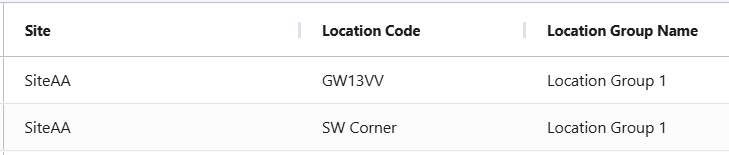
Location Groups are available for filtering in Data Views (not currently available in Data Explorer)